Energy Budgeting
(requires Premium)Overview
The Budget page lets you plan how you want to spend your energy each week where every point of energy is assigned to a category.
Note: Energy budgeting is a premium feature.
How it works
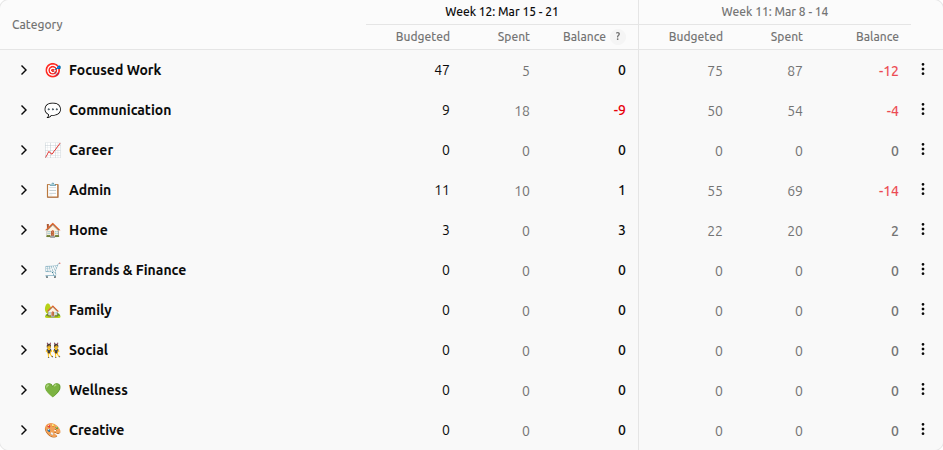
- Set your weekly total. Your weekly energy budget is the total pool of energy you plan to allocate. Click on the numeric value to edit this field for a manual entry.
- Allocate to categories. Distribute your total across the categories that matter to you. The “Unassigned” pool shows how much is left to distribute. This is done by clicking in the budget column for the category you want to allocate points to. Allocating to a sub-category will update the category group total, but if you assign points to the category group directly and then modify the sub-category underneath it, the points will be taken from the category group. This is important to note because you may want to leave some points unassigned in the category group. If that's the case, then add the extra points after you add the sub-category points.
- Track actuals. As you log entries during the week, each category shows how much of its allocation has been used.
- Compare weeks. An adjacent column shows the previous week for easy comparison. Use the budget reports page for more detailed analysis.
- Create experiments for making meaningful changes.
Week navigation
Use the week selector tabs and year navigation to browse different weeks. The current week is highlighted.

Category management
Access category commands via the three dots menu on the far right.
- Transfer Energy – transfer energy from the current balance of one category to another in order to cover a deficit.
- Zero out – set a category to zero and optionally add a journal note explaining why.
- Carryover – enable carryover on a category to roll unused energy into the next week.
- Recurring target – set a weekly target for any category and it will carry forward automatically.
- Reorder & hide – move categories up, down, or into another group. If the group has been used to store energy in the past, then you should hide it rather than delete in order to maintain historical consistency.
Quick actions
- Track Energy – jump straight to the tracking form with a return link back to the budget.
- Set from averages – auto-fill allocations based on the average over the last 8 weeks for energy spending.
- Adjust Balance – make a manual adjustment to the current week towards the balance. This is used when you need to reconcile an item and understand that sometimes you just need to reset something or make an adjustment.
- Undo – if you want to undo up to the last three actions in the budget, you may do so with the undo button. It will only be active if there is an action to undo and only tracks the last three actions.

Daily allowance
Your daily energy allowance is influenced by your daily check-in. We don't always start at the same place with our energy and need to recognize that each day for where we think our starting place for the day is. You may set the default values in the settings menu under Daily Check-In.

Related
- Getting Started – your dashboard overview
- Managing Categories – create and organize budget categories
- Reports & Analytics – spending trends and adherence charts
- Plans & Pricing – budgeting requires premium