People Tags
Overview
To manage your people tags, go to Settings, then under Custom Fields, select Manage People.
People tags let you record who you were with during an activity. This is powerful for understanding social energy patterns – which relationships show up as gains versus expenses in your data.
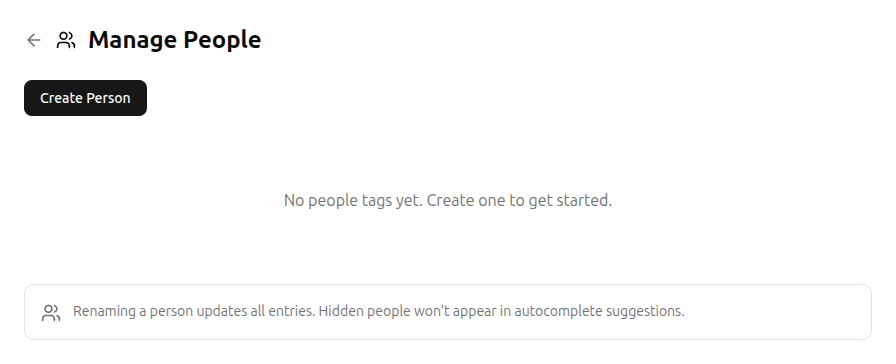
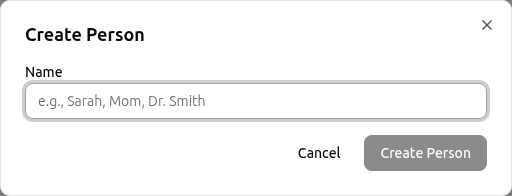
Creating a person tag
Click Create Person and enter a name (e.g., “Sarah”, “Mom”, “Dr. Smith”). People appear as autocomplete suggestions when logging entries.
Editing and hiding
- Rename – renaming a person updates all entries that reference them.
- Hide – hidden people won't appear in autocomplete suggestions but existing entries keep their tags.
Privacy note
People tags are entirely private. Only you can see who you've tagged in your entries. You can manage your social tracking consent in consent and privacy settings. This data is included in your data export and deleted when you delete your account.
What to Look For
People tags are most useful once you have a few weeks of data. Over time, you'll start to see how different relationships show up across your energy data: which people appear on your higher-cost days versus your lower-cost days, and whether those patterns are consistent or situational.
Detailed analysis based on social data is a premium feature. Recording people tags on a free account preserves your historical data, so it's ready for deeper analysis if you upgrade later.
Related
- Tracking Energy – tag people in your entries
- Account Settings – access people management